
AGN
Instructions
To start the projector switcher, double click on the yellow and red SB Switch icon on the desktop.
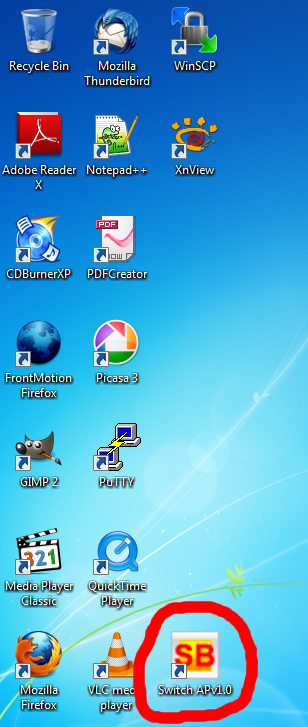
Once the application starts, go to the Settings menu and select "Key as Crosspoint".
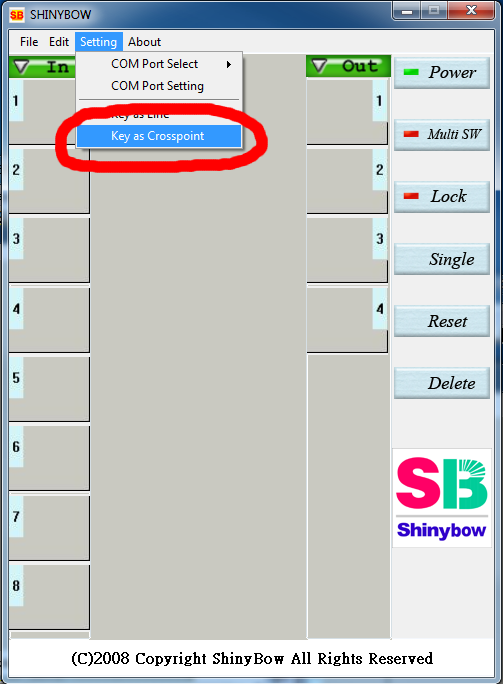
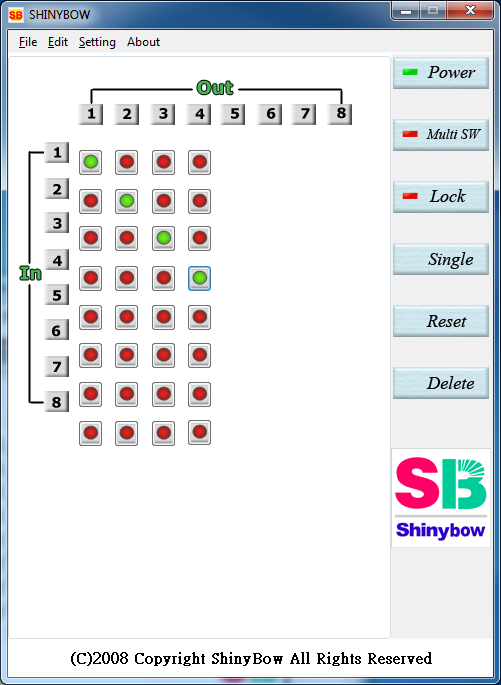
Default Layout
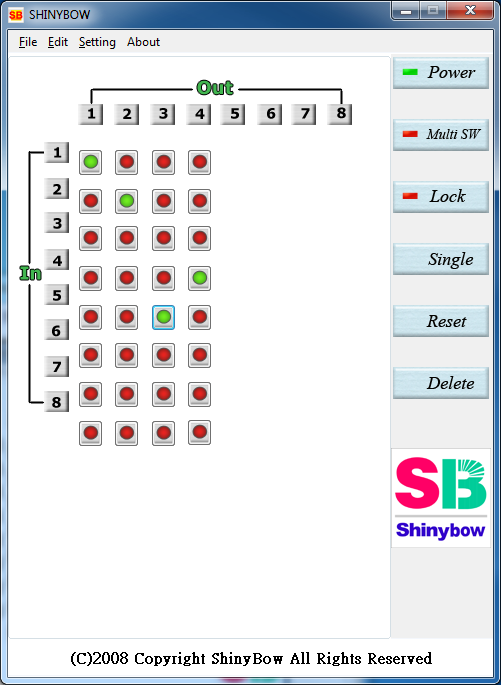
The default layout is shown below. The main window with the Windows Start button is displayed on the LCD screen, and there are three "empty desktops" worth of screen Real Estate on the projectors.
If one would like to display that initial screen on the left or middle projector change it so column two or three has Input One highlighted.
DO NOT change the screen in Column 1!
Hookup a Laptop
To hook up a laptop, plug the laptop's VGA out into the cable in front of the computer podium, then in column two or column three change the output to 5 as dsiplayed below.
Changing column 2 to 5 will put the laptop display on the left projector. Changing colun 3 to five will put it on the middle projector. One may also change both columns 2 and 3 to selection 5 if one wants both projectors to show the laptop's output.
DO NOT change the screen in Column 1!
Laptop on the left screen:
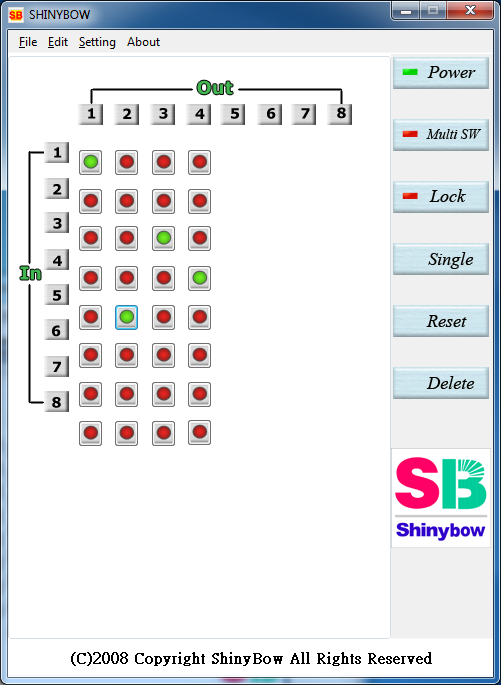
Laptop on the middle screen:
Problems
If you are having problems:
- Reboot the computer.
- Everything on the C:\ drive will be lost.
- Use drive Z:\ for presentations that much survive a reboot.
- ONLY use the yellow and red SB Switcher on the desktop.
- The switcher uses COM 3.
- You'll most likely want to use the configurations listed under instructions.
- Use the black VGA cable in front of the computer desk to connect a laptop.
- If the switcher isn't accepting your input, the device may need to be reset.
- Go into the computer closet - the door to your left as you enter the AGN.
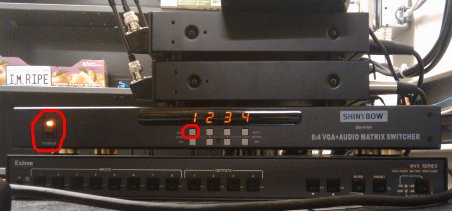
- Find the switcher, pictured below.
- Using the power switch, turn it off for 20 seconds, then turn it back on.
- If you switch the input for column 1:
- Go into the computer closet - the door to your left as you enter the AGN.
- Find the switcher, pictured below.
- Using the button under the first digit, switch it so it reads 1
Notes
If you have any presentations or other data that must survive a reboot, please use DRIVE Z:\. Anything stored on the C:\ drive will be lost upon reboot.
When you're done with the presentation it is a good idea to remove it from DRIVE Z:\.
DO NOT change the screen in Column 1!